December 2026 Calendar Image files let you put the month inside something you are already making. A school newsletter might need a small date reference alongside a concert announcement. A community center might want a large paper calendar for a display board. The first and third gallery downloads are PNGs, and the second and fourth are JPGs. Each link opens its own full-size design. Choose a layout that suits the space before deciding whether you need to change anything about the file.
December 2026 Calendar Image: Printable PNG and JPG
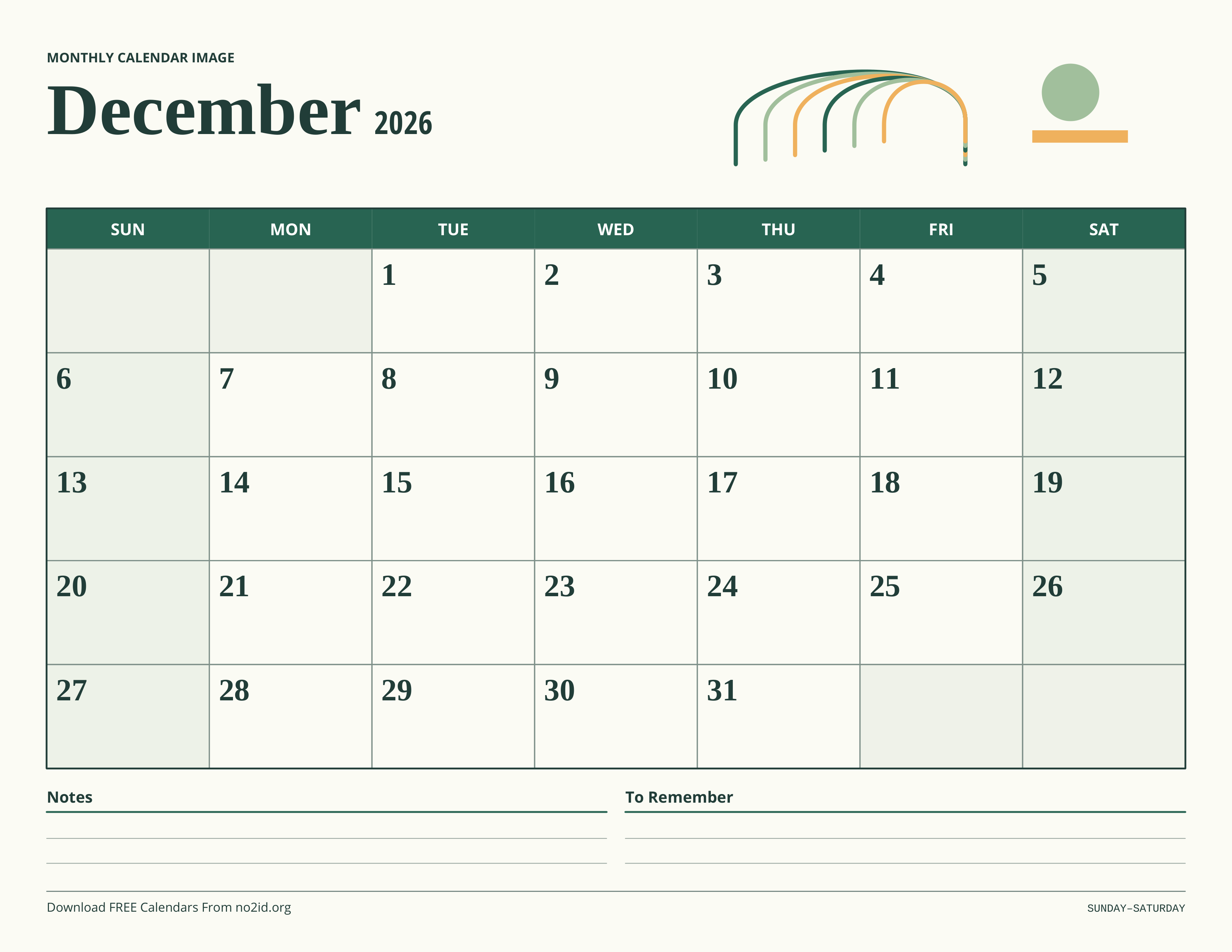
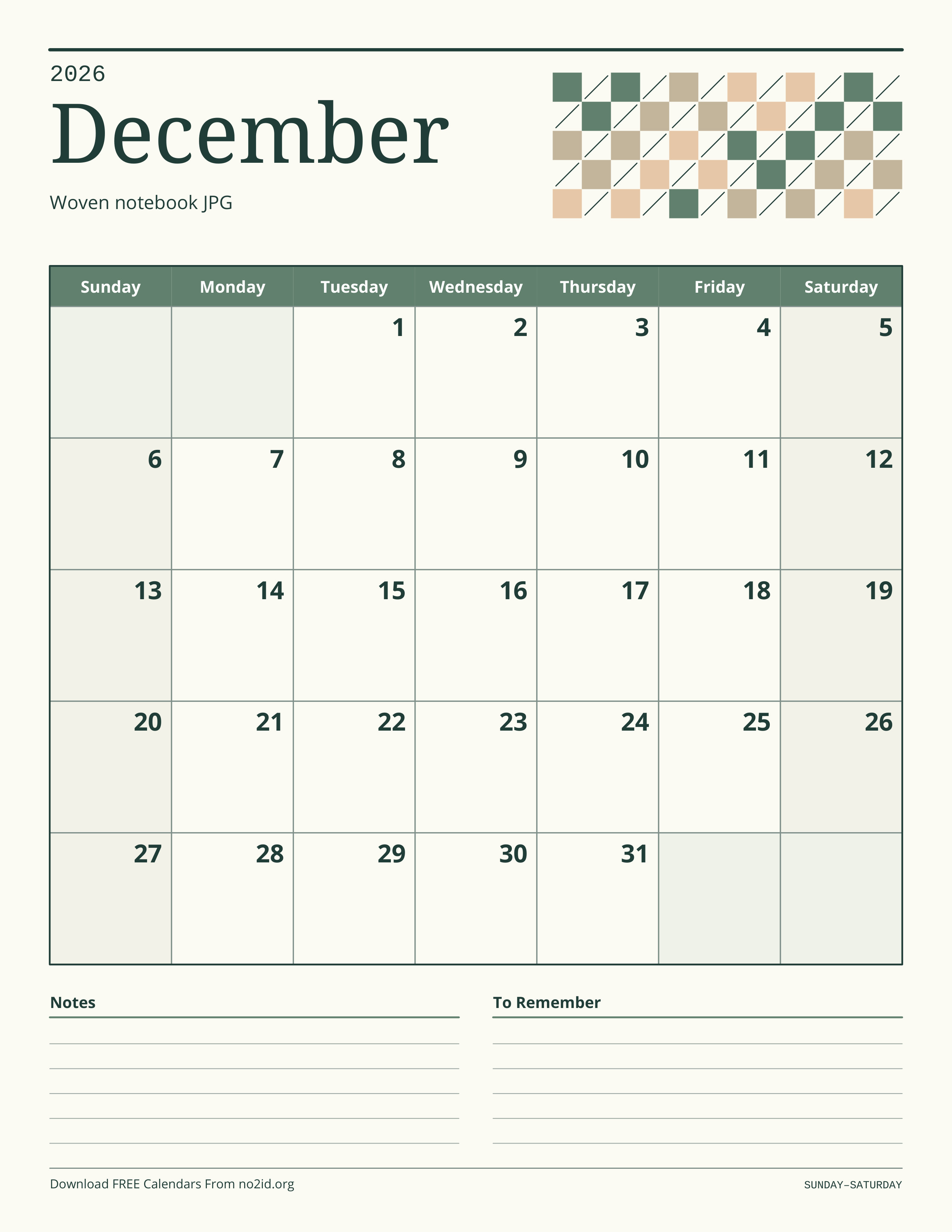
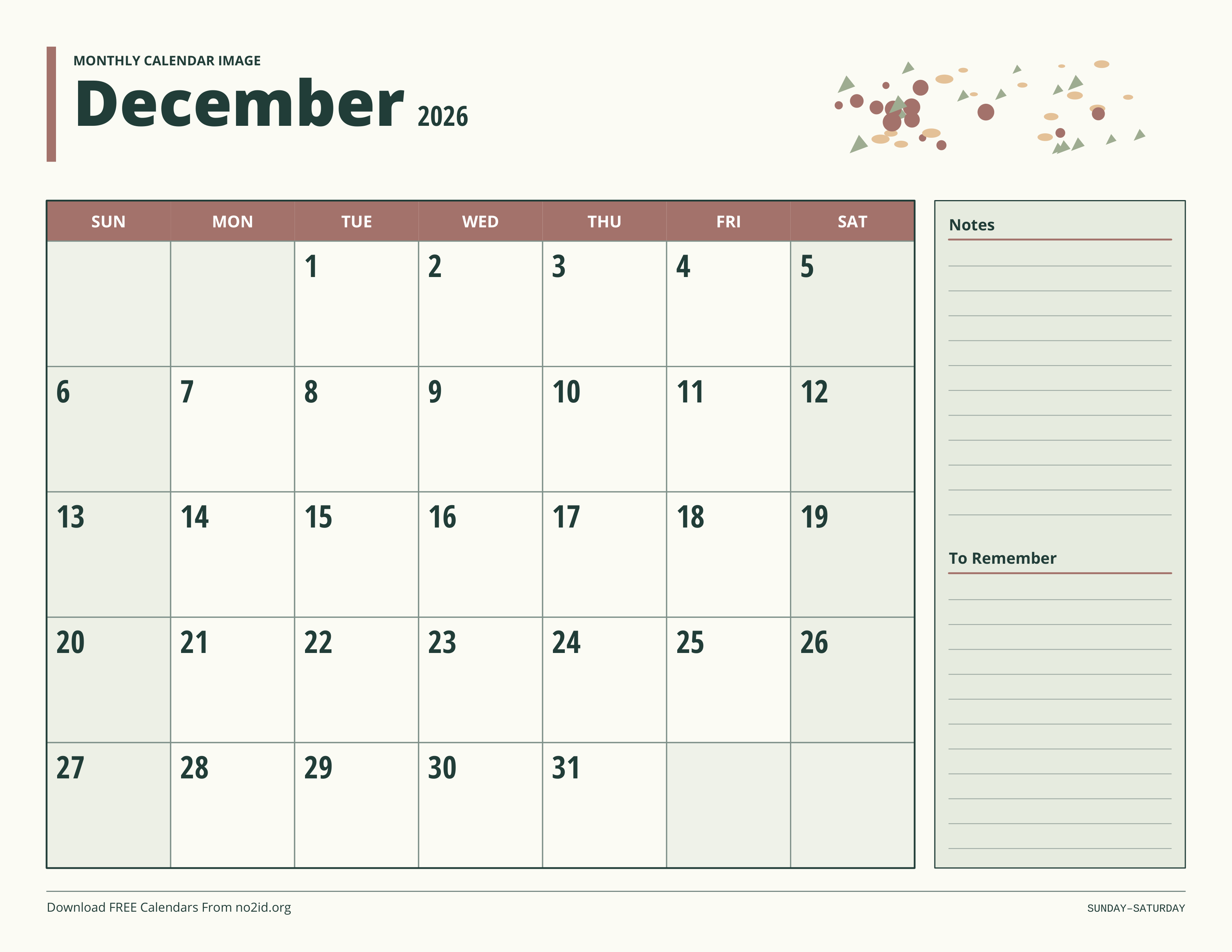
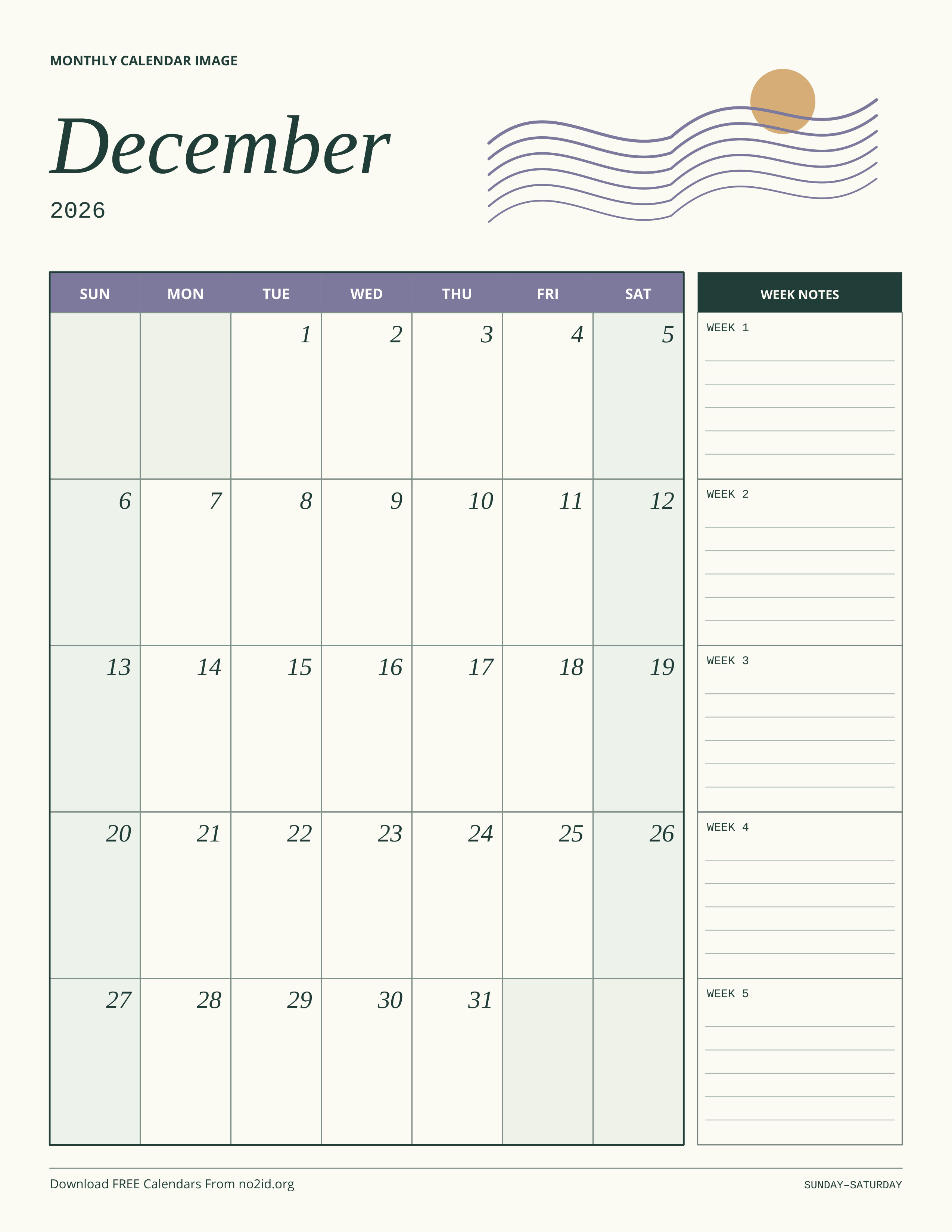
Choose a December 2026 Calendar Image for Its Destination
Start with three measurements. Find the width of the space in your document, the approximate distance from which a reader will see it, and the original image’s width in pixels. The first two tell you how large the calendar needs to look. The last tells you how much real detail the file can supply. Enlarging a preview from a web page can leave fuzzy numerals even if the full-size download would have printed beautifully.
PNG stores its image data without the small compression changes used by JPG. JPG can keep a detailed picture relatively compact, but repeatedly reopening and exporting it with lossy compression may soften edges. Both can print clearly when the original has enough pixels for the chosen size. A PNG extension by itself tells you neither the dimensions nor whether the background is transparent. Open the particular file you selected and inspect its actual appearance.
Calculate the Size Before You Place the Picture
Divide pixel width by printed width in inches to find the effective pixels per inch across the page. For instance, an image 2400 pixels wide placed at 8 inches supplies 300 pixels per inch. Place that same example at 4 inches and the number becomes 600. The smaller placement contains plenty of detail, yet its day numbers may be physically too small for your readers. Pixel density and the size of a reader’s handwriting answer different questions.
| Example original width | Placed width | Effective resolution |
|---|---|---|
| 1800 pixels | 6 inches | 300 pixels per inch |
| 1800 pixels | 9 inches | 200 pixels per inch |
| 2400 pixels | 8 inches | 300 pixels per inch |
| 2400 pixels | 10 inches | 240 pixels per inch |
Place a December 2026 Calendar Image in a Newsletter
- Save the full image to your computer. Open it separately first and read the weekday headings so you know the original is complete.
- Insert the saved file as a picture in the newsletter. Lock its proportions and size it using a corner control or the width field.
- Place the identifying month and any important event information in document text as well. This gives readers a way to find dates when searching the newsletter.
- Export a proof, print one page, and read the smallest number at arm’s length. View the electronic proof at a normal zoom level too.
For an elementary school concert on Thursday, December 10, a parent may look at the email only long enough to check whether it is this week or next. Put “Thursday, December 10” in the announcement itself and include the time there. The adjacent picture gives the month context. Parents can see that the following Thursday is the 17th without having to interpret the date from a tiny dot or a circled number.
Avoid a Misleading Crop
A writing program may offer both a picture boundary and a crop boundary. Resizing the boundary usually changes the size of the entire image. Moving a crop edge can hide part of it. When the layout has been revised several times, compare the placed picture against the original. Find a date in every weekday column. Check that the month, year, and credit at the bottom have survived the final export.
- When a square placeholder crops a tall or wide image, adjust the placeholder or choose a different space on the page.
- When another editor needs the December 2026 calendar image, send the saved original along with the working document so they can replace a damaged copy.
- When the picture acts as a visual reference online, give it a short description that names the month and identifies its purpose in that particular notice.
- When a printed layout is crowded, shorten nearby copy or dedicate a larger section to the calendar.
Choose a Sensible Working File
If you need to mark one date for a slide, add the circle as a separate shape and leave the underlying image intact. Give the shape a clear outline and make sure it lands inside the intended day box. A circle around Wednesday the 23rd should still point to the 23rd after the slide is displayed on a different screen. Group the shape and the image if your software lets you, then recheck the result after moving them together.
Keep the unmarked December 2026 calendar image and the finished publication under different filenames. A designer preparing the January issue may want the December example to see how much space the layout allowed. A teacher might instead want to reprint a calendar without the concert circle. Labeling the marked document by event and the clean picture by month makes both jobs straightforward. You can always make a new announcement from the original without carrying along yesterday’s edits.
A simple handoff prevents an avoidable last-minute print error. Tell the person collecting the newsletter which image file goes with the final version and identify the page where it appears. If their proof shows a blank box, ask them to open the document with that original file available and check how their software stores linked pictures. Send a fresh, self-contained proof once the picture is in place.
The free printable December 2026 calendar includes a PDF for direct printing. Use the black-background PNGs for a dark canvas or the desktop and mobile wallpaper if the image needs to fit a home screen.